home  photos  store  tips & ideas
 snapfish by HP  snapfish by HP
sign up!  |  log in
send us film  |  how snapfish works


 search help  or
 go (Example: upload photos)

 
go to: help index
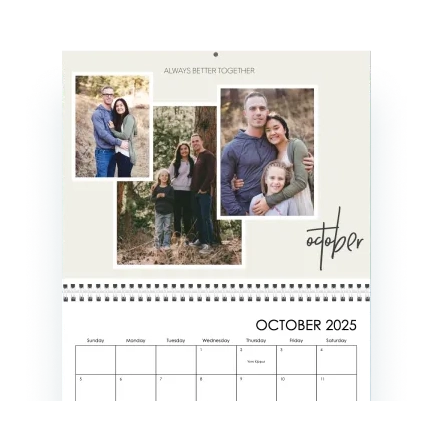
create a 12-month photo calendar
Select Starting Month & Style
Customize your calendar
 
Select Starting Month & Style
Step 1
Select a size
You can choose from two sizes: 8.5" X 11" matte calendars for $18.99 each, or 11.5" X 14" glossy calendars for $27.99 each. Click the button next to the size you'd like to order.

Step 2
Select a starting month
Choose a month in the drop-down box on the top of the page to kick off your calendar.

Step 3
Select a calendar style
To preview a style, click the button next to the style name and a preview will appear at the left of the page.

Note:All photos in the "Black & White" calendar will be converted to black and white. All photos in the "Vintage" style will be converted to sepia tone. These changes will not affect the original photos in your online albums.

Once you've picked a starting month, style, and size, click the "continue" button.

back to top | help index
Customize your calendar

Step 1
Choose a month to build
The top of the page shows each month of your calendar, while the bottom of the page shows all the photos in your album. Choose the month page you'd like to work on.

Step 2
Choose a page layout
There are nine different page layouts to choose from, including layouts with one, tow and three photos. Choose your page layout by clicking "Choose page layout," then select the layout you'd like to use.

Step 3
Add photos to each month
Once you've picked your layout, "drag and drop" photos from the bottom of the page into the slots at the top. To drag and drop, click on the photo and, while holding down the click button, bring the photo over the area where you would like to place it. You can use the same photo as many times as you want in the same calendar.

    If you want to add photos from a different album than the one shown, follow these steps:

  1. Click the "Choose another album" button. A pop-up window will appear displaying your albums
  2. Select the album you want to choose photos from, and then click the "open this album" button.
  3. You will then return to the calendar page and see that album's photos displayed on the bottom of the page. Repeat this step for each album from which you want to use photos.
To save your calendar and finish it at a later time, click "save for later" at the top right of the page. To stop creating your calendar, click the "cancel" button.

Step 4
Personalize your dates
You can add your own photos and/or captions to any day of the year. Click on the date you'd like to personalize, drag and drop your photo, and add text in the "add title" box. If you've created a calendar before, you can even import your personalized dates into your new calendar.

When you're finished personalizing a date, click "done" and your photo and caption will automatically appear.

Step 5
Repeat steps for all 12 months, and then review your calendar
Once you're finished with all twelve month, click "review calendar." On the next page, you can click on a month to review each page individually, or you can click the "view all of your photo layouts" to review all of your pages at once.

back to top | help index


about us  |  free photo software  |  mobile  |  t&c's  |  privacy  |  our products  |  pricing  |  site map  |   help